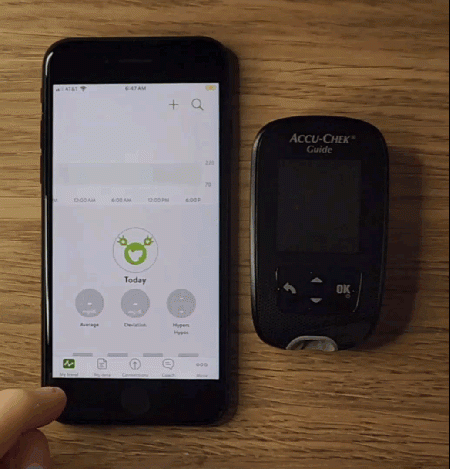

Easy peasy!
First steps:
iOS:
- Is your iPhone’s Bluetooth on? If not, please turn it on.
- Open the mySugr app and go to “Connections” in the tab menu located at the bottom of the screen
- Select the Accu-Chek Guide and activate it.
Android:
- First, turn on Location Services for the mySugr App during the pairing process. You can turn it back off once you're done. Settings > Apps > mySugr > Location Services. Be sure it's turned on.
- Open the mySugr App and find "Connections" in the tab bar menu
- Bluetooth will be automatically activated on your smartphone if it's not currently active.
Further steps:
- Turn on your meter.
- Go into “Settings” on the meter.
- Select “Wireless” then “Pairing” then “Pair Device” and follow the on-screen instructions to create a new wireless connection.
- Watch for a pairing notification on your smartphone (popup message or notification center).
- Enter the code from your meter to your smartphone to confirm the pairing.
- Pairing and activation was successful - Your meter is now connected to the mySugr App!
You can return to the mySugr home screen by tapping on My trend in the tab bar menu.